

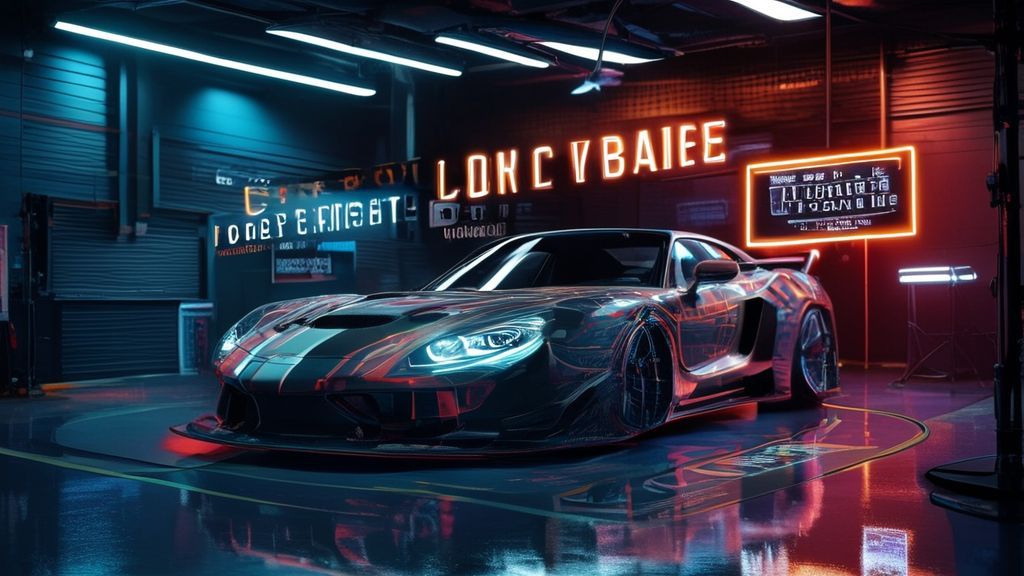

How to Customize Vehicle Liveries in FiveM Servers
Ever joined a FiveM server where every police car, gang vehicle, or civilian ride looks exactly the same? Liveries are one of those small details that quietly define how professional and immersive your server feels. When done right, custom vehicle liveries turn generic cars into recognizable factions, brands, and identities. In this guide, we’ll walk through how to customize vehicle liveries in FiveM servers, from understanding how the system works to adding, configuring, and troubleshooting livery setups that actually show up in-game.
Whether you’re running ESX, QBCore, or a custom framework, the fundamentals stay the same. By the end, you’ll know how to install livery-ready vehicles, create or edit livery textures, and make sure players can select them without headaches.
Key Takeaways
- Vehicle liveries in FiveM are texture-based and controlled through vehicle meta files.
- Not all vehicles support liveries by default; the model must be configured correctly.
- Custom liveries require proper texture naming, YTD files, and meta setup.
- Most “livery not showing” issues come from meta misconfiguration or cache problems.
- Using quality vehicle packs from trusted Tebex stores saves time and avoids errors.
What Are Vehicle Liveries in FiveM?
In FiveM, a livery is an alternate texture applied to a vehicle model. Think police department markings, taxi branding, racing sponsors, or faction-specific designs. Technically, these liveries live inside .ytd texture dictionaries and are referenced by the vehicle’s vehicles.meta file.
If a vehicle supports multiple liveries, players can switch between them in-game using native menus, garage scripts, or admin tools. If it doesn’t, no amount of texture editing will magically make them appear.
Prerequisites Before Customizing Liveries
Before touching Photoshop or meta files, make sure you have the basics covered:
- A vehicle resource that already supports liveries or can be edited to support them
- OpenIV or a similar tool for viewing GTA V vehicle files
- Basic image editing software (Photoshop, GIMP, etc.)
- Server access to restart resources and clear cache
If you’re sourcing vehicles, marketplaces like Tebex are commonly used by FiveM server owners. Dedicated vehicle stores such as cars.scripts-tebex.io often include livery-ready vehicles, which saves a lot of setup time.
Step-by-Step: How to Add Custom Vehicle Liveries
1. Check If the Vehicle Supports Liveries
Open the vehicle’s vehicles.meta file and look for the <numMods> and <liveries> entries. If liveries are supported, you’ll see entries that define how many liveries the vehicle can use.
If the vehicle doesn’t support liveries, you’ll need to add those entries manually. This is common with older or poorly configured add-on vehicles.
2. Create or Edit the Livery Texture
Liveries are stored in a vehicle_name.ytd file. Inside, each livery follows a naming pattern like:
vehicle_sign_1, vehicle_sign_2, and so on.
When editing:
- Keep the resolution consistent with the original texture
- Preserve the alpha channel to avoid visual bugs
- Export using the same compression format as the original
This is where most beginners go wrong. One mismatched setting can cause invisible or broken liveries.
3. Update vehicles.meta Correctly
Each livery must be referenced in vehicles.meta. The order matters. If you define three liveries but only include two textures, the third will either be blank or crash the model.
After editing, restart the resource and clear your FiveM cache before testing.
Using Pre-Made Vehicles With Livery Support
If you don’t want to build everything from scratch, using professionally prepared vehicles is often the smarter move. For example, many packs on cars.scripts-tebex.io come with clean livery support out of the box.
Some examples of vehicles commonly customized with liveries include:
- Vapid Scout XL Pack for law enforcement or federal units
- Canis Seminole Hellfire XL for unmarked or detective roles
- Dinka Sugoi for civilian or tuner-themed servers
- Pegassi Infernus Classic for racing or luxury branding
- Grotti Turismo Omaggio and Truffade Nero for high-end custom liveries
These vehicles are typically structured correctly, meaning you only need to swap textures instead of rewriting meta files.
Common Livery Issues and How to Fix Them
Livery Not Showing In-Game
This usually comes down to one of three problems: incorrect texture names, missing meta entries, or cached files. Double-check naming and always clear cache before assuming the vehicle is broken.
Livery Appears but Looks Misaligned
This is a UV mapping issue. The texture is correct, but the model’s UVs don’t match your design. Fixing this requires a 3D modeling tool, not just image editing.
Players Can’t Change Liveries
Make sure your garage or admin script supports liveries. Some menus only allow basic mod kits unless explicitly configured.
Best Practices for Server-Friendly Liveries
- Keep livery counts reasonable to avoid unnecessary memory usage
- Use consistent branding across factions for immersion
- Test liveries during peak player load to check performance impact
- Document livery IDs for staff and developers
Conclusion
Custom vehicle liveries are one of the most effective ways to give your FiveM server a unique identity without rewriting gameplay systems. When set up properly, they improve immersion, reinforce roleplay structure, and make your server feel polished instead of generic.
The key is understanding how liveries actually work under the hood: textures, meta files, and proper naming. You can build everything yourself, but using well-prepared vehicles from trusted Tebex-based stores dramatically reduces errors and saves time. Once your workflow is solid, adding new liveries becomes routine rather than frustrating.
If you’re serious about server quality, liveries aren’t optional decoration. They’re part of your server’s visual language. Done right, players notice—even if they don’t consciously realize why everything feels better.